
As part of Bytecurve’s online security policy, we would like to get your consent to use cookies in the Bytecurve application. Accordingly, when you launch the login page of the Bytecurve web application (both Bytecurve360 and the parent app), you will be prompted to allow cookies, as shown in the screenshot below. Please click on the ‘Allow cookies’ button at the bottom right of this screen.
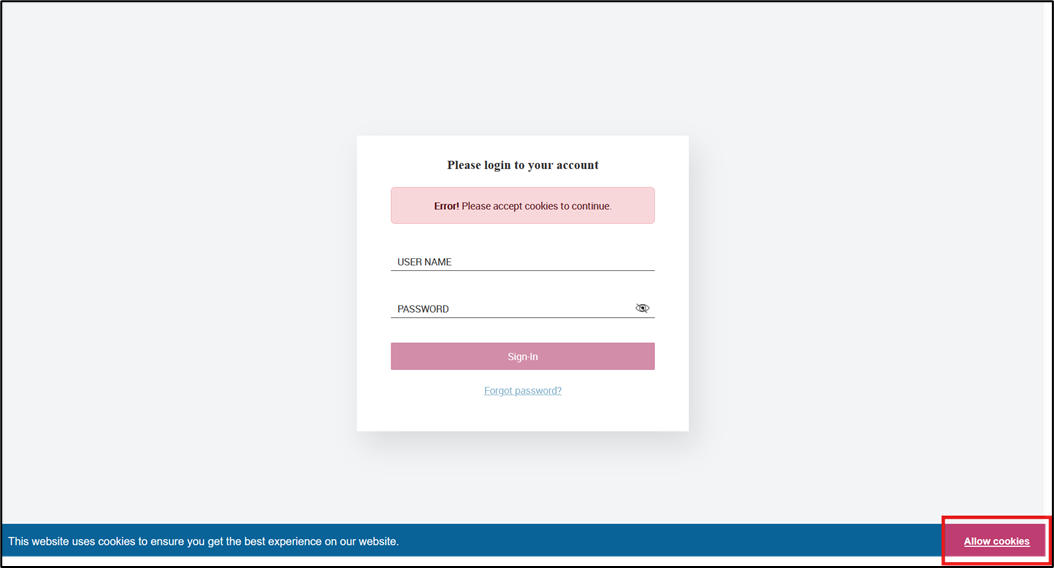
The Bytecurve application only saves cookies that are required to keep your session active while you are logged in to the application. Without your consent to this, the application will not work as designed. If you have any additional questions on this, please contact support@bytecurve.com.
Accessing your saved credentials
After you have clicked on ‘Allow cookies’, you will be taken to the login screen. Please click on the USER NAME field and your saved credentials will be displayed. Then click in the shaded area to use your saved credentials to log in.
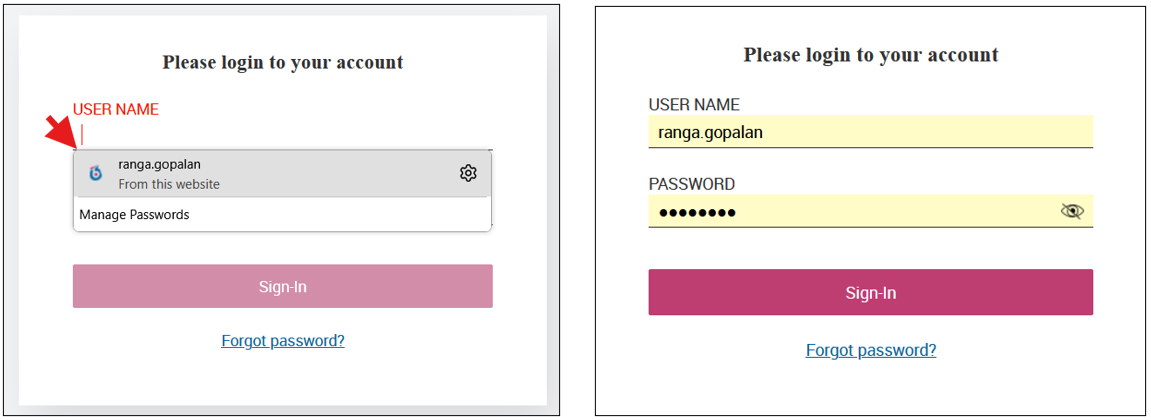
If you don't see your saved credentials, you will need to enter your User Name and Password to log into the application.